A new hire welcome email template should do two jobs: make the employee feel expected and tell them exactly how to start work. The best version confirms the date, time, location or meeting link, a real contact person and the first few steps. It doesn't promise that equipment or access is ready until someone has checked.
Copy the main email below, then choose a version for office, remote, hybrid or frontline work. People Ops should own the logistics, while the hiring manager adds the personal welcome. The email is the employee-facing summary of a coordinated onboarding process, not a substitute for that process.
- Send a personal welcome after the offer is accepted, then confirm day-one logistics close to the start date.
- Name the exact arrival or login time, time zone, location or meeting link and a backup contact.
- Verify the laptop, account access and first meeting with the actual owners before promising them.
- Keep identity documents, payroll details and passwords out of ordinary reply-email requests.
- Use the office, remote, hybrid, frontline, manager or team-introduction version below.
What is the best new hire welcome email template?
The best new hire welcome email template is short enough to scan and specific enough to act on. It should sound like a person wrote it, but it must still answer the employee's practical questions. Here's a copy-ready version for a US-based employee starting in an office. Replace every bracketed field, remove irrelevant lines and confirm details before sending.
Subject: Welcome to [Company Name], [First Name] | Your first day on [Start Date]
Hi [First Name],
We're glad you're joining [Company Name] as our new [Role]. I'm [Sender Name] from [Team], and I'll help you get ready for your first day.
Your first day is [Start Date] at [Start Time and Time Zone]. Please come to [Arrival Address, Building and Floor] and ask for [First Contact Name]. You can find [parking, transit or entry instructions] here: [Directions or Entry Details].
[Manager Name] will meet you at [First Meeting Time]. Your first morning includes [brief orientation], [team introduction] and time to get set up. We'll share a fuller schedule when you arrive.
Your [Equipment Status] is [verified status or next update date]. For any outstanding forms, please use [Secure Paperwork Route]. You don't need to email personal documents or account passwords to me.
If you're delayed, need an accessibility adjustment or can't get into the building, contact [Backup Contact Name] at [Backup Contact Phone or Email]. You can also reply with general questions.
We're looking forward to meeting you.
[Sender Name] [Title] | [Company Name] [Direct Contact]
Why this version works: The employee gets one clear route into the workplace, one named person and a fallback if something fails. It doesn't bury the arrival time inside an enthusiastic paragraph. It also distinguishes a confirmed equipment handoff from a plan that's still pending.
What details should HR check before sending the welcome email?
HR should verify the details in the email against the onboarding record, not rely on last week's recruiting notes. A changed start date, unapproved application account or missing shipping address can make an otherwise friendly message misleading. Use the brief below as the source for your email, and download it to fill in with the owners.
New Hire Welcome Email Brief and Copy-Ready Draft
Fill in the brief first, confirm each line with its owner, then paste the verified values into the email variant you need. The examples are fictional.
- New hire name
- Jordan LeePeople Ops. Check the preferred name and the correct recipient address.
- Role
- Customer Support SpecialistHiring manager. Use the final approved job title.
- Start date
- Monday, November 9, 2026People Ops. Use the accepted date, not a tentative one.
- Start time and time zone
- 9:00 a.m. ETHiring manager. Use the local time for the employee.
- Arrival or join details
- Reception, 200 Market St., floor 4Facilities or manager. Verify entry access or a working meeting link.
- First contact
- Morgan Patel, reception hostHiring manager. The contact must know they are the host.
- Manager
- Avery ChenPeople Ops. Confirm the manager is available.
- Equipment status
- Laptop ready for pickupIT. Confirm device assignment or shipment; choose ready for pickup, shipped, delivered, delayed or awaiting confirmation.
- Secure paperwork route
- HR portal invitationPeople Ops. Test that the link and the employee account work.
- First meeting
- 9:30 a.m. orientationPeople Ops. The host must have accepted the calendar invite.
- Accessibility or accommodation contact
- people@company.examplePeople Ops. Use a private, appropriate request channel.
- Backup contact
- People Ops desk, 555-0100People Ops. The contact must be monitored at arrival time.
- Subject
- Welcome to [Company Name], Jordan | Your first day on November 9Company name, first name and start date.
- Opening
- We're glad you're joining as our new Customer Support Specialist.One personal line, no long biography.
- Day-one logistics
- Monday, November 9 at 9:00 a.m. ET, reception, 200 Market St., floor 4. Ask for Morgan Patel.Start time with time zone, arrival or join details, first contact.
- Equipment and paperwork
- Your laptop is ready for pickup. Use the HR portal invitation for forms.Confirmed status only. Never ask for sensitive replies.
- Backup contact
- People Ops desk, 555-0100Contact for delays, access problems and accessibility needs.
| Owner | Confirms | Confirmed | Name | Date |
|---|---|---|---|---|
| People Ops | Start date, recipient, paperwork route | |||
| Hiring manager | First meeting, host, role introduction | |||
| IT | Device and account activation route | |||
| Facilities or site lead | Address and entry instructions | |||
| Finance or payroll | Secure setup route |
| Date | What changed | Approved by | Replacement email sent |
|---|---|---|---|
| Nov 4 | First meeting moved from 9:30 a.m. to 10:00 a.m. ET | People Ops | Yes, labeled Updated |
| Nov 6 | Equipment status changed from awaiting confirmation to ready for pickup | IT | No, status note only |
The names, addresses and phone numbers in the brief are fictional, not real employee data. The owners in each hint are suggested accountability assignments. A smaller company can combine roles, but the responsibility still needs a name. Don't say "IT will help" when nobody in IT has accepted the request.
Which welcome email should I use for different new hires?
Use a different new hire welcome email when the employee's work setting changes the first-day logistics. An office hire needs an entrance and host, while a remote hire needs a working link and a fallback when the device hasn't arrived. The examples below aren't interchangeable without edits. Each keeps one owner accountable for the next step.
1. In-office new employee welcome email
An in-office welcome email should prevent a new employee from arriving at a locked door or wandering between reception desks. Keep the location and host in the first screen of the message.
Subject: See you at the office on [Date], [First Name]
Hi [First Name],
We're excited to welcome you to [Team] as our new [Role]. Your first day starts at [Time and Time Zone] on [Date]. Please enter through [Entrance] at [Full Address] and check in with [Host Name]. [Host Name] is expecting you and will take you to [Meeting Location].
Parking or transit: [Specific Instructions]. Dress code: [Practical Guidance]. Your manager, [Name], will meet you at [Time], followed by [Orientation or Team Introduction]. Your workspace and device status is [Confirmed Status].
If you're running late or the entrance is closed, call [Backup Contact and Phone]. You don't need to guess whom to ask. We'll see you soon.
[Sender Name]
Before sending: Facilities confirms entry instructions, IT confirms the workstation and the manager confirms that the host will actually be present. If one item isn't ready, the message should name the workaround.
2. Remote employee welcome email
A remote welcome email needs a clear time zone, meeting link and technology fallback. It shouldn't tell someone to sign into an account they haven't received. Keep setup instructions separate from credentials.
Subject: Your remote first day at [Company Name] | [Date]
Hi [First Name],
We're happy you're joining [Team] from [Location or Time Zone]. Your first day begins [Date] at [Time and Time Zone]. Please join [Welcome Meeting Name] using [Verified Meeting Link]. Your host is [Name], and the first call will cover introductions, your schedule and how to get help.
Your laptop is [Delivered / Scheduled for Delivery on Date / Delayed, with Next Update]. IT will send account activation instructions through [Approved Secure Channel]. If you can't join the call, phone [Backup Number] and we'll arrange an alternative.
Your manager, [Name], has reserved [Time] for a one-to-one. We're looking forward to working with you, and you won't be expected to solve access problems alone.
[Sender Name]
Before sending: IT confirms the device or contingency, the host tests the meeting link and the manager checks the employee's time zone. A personal email address may be necessary before corporate email is activated, so don't assume the new hire can read an internal calendar invitation.
3. Hybrid employee welcome email
A hybrid welcome email must settle which days happen where. A message that says "see you Monday" isn't useful if the employee doesn't know whether Monday is an office or home day.
Subject: Welcome to [Company Name] | Your first week plan
Hi [First Name],
We're glad you're joining us as [Role]. Your first day is [Date] at [Time and Time Zone], and you'll begin [In Office / Remotely]. On [Office Day], please go to [Address and Entrance] and ask for [Host]. On [Remote Day], join [Meeting Name] at [Verified Link].
Your manager, [Name], will explain our team schedule during [First Meeting]. Your equipment status is [Confirmed Status], and IT can help at [Approved Support Contact]. If plans change, we'll send an updated schedule with a named owner rather than leave you guessing.
We're excited to meet you both online and in person.
[Sender Name]
Before sending: The manager approves the actual attendance pattern, Facilities confirms office access and IT confirms that the employee can work from both settings. If the hybrid policy isn't finalized, say when the manager will confirm it.
4. Frontline or hourly new hire welcome message
A frontline welcome message should be mobile-friendly and avoid assuming the employee has a corporate inbox. It should specify the reporting location, shift, supervisor and safe contact method. Use an email or approved message channel that the employee has agreed to receive.
Subject: Your first shift at [Company Name] | [Date and Time]
Hi [First Name],
Welcome to [Location or Team]. Your first shift is [Day, Date] from [Start Time] to [End Time] at [Site Address]. Enter at [Staff Entrance] and ask for [Supervisor Name]. They'll show you where to check in and explain the first-shift plan.
Please wear [Role-Appropriate Clothing or Safety Instructions]. Any required equipment or training will be explained by [Owner]. For hiring paperwork, use [Secure Route] or speak privately with [HR Contact].
If your shift details change or you can't reach the site, contact [Supervisor Phone] or [Backup Phone]. We're glad to have you with us.
[Sender Name]
Before sending: The scheduling owner verifies the roster and reporting time, the site supervisor confirms coverage and People Ops checks the correct paperwork channel. Don't assume a new employee can complete a required task using an unpaid personal device without checking company policy and applicable rules.
5. Personal welcome email from the hiring manager
The manager's welcome email should add connection, not duplicate every administrative instruction. People Ops can own logistics while the manager explains the role's first conversation and why the person was hired.
Subject: Looking forward to working with you, [First Name]
Hi [First Name],
I'm [Manager Name], and I'll be your manager on [Team]. I'm really glad you chose to join us. Your work on [Relevant Skill or Experience] stood out during our conversations, and I'm looking forward to hearing how you approach [Real Team Problem].
I've set aside [Day and Time] for us to talk about the team's priorities, how we work and what a good first month might look like. You won't need to arrive with all the answers. We'll use that conversation to set a sensible starting point.
[People Ops Contact] will send the confirmed first-day details. You can reach me at [Manager Email] if you'd like to ask about the role before we meet.
See you soon, [Manager Name]
Before sending: Personalize the experience or team problem only if it's accurate. Avoid a generic compliment that could go to anyone, and don't promise a project assignment the manager hasn't approved.
6. New employee introduction email to the team
A team introduction has a different audience. It's sent to colleagues, not to the new hire as their logistics note. Get the employee's consent before sharing a photo, personal background or hobbies.
Subject: Please welcome [First Name] to [Team]
Hi team,
[First Name] joins [Team] as our new [Role] on [Start Date]. They'll work with [Manager Name] on [Approved Role Scope].
Please say hello at [Optional Welcome Meeting or Team Channel]. [Buddy Name] will help with everyday questions, while [Manager Name] will coordinate role-specific introductions. We'll share work priorities once [First Name] has had time to settle in.
We're glad [First Name] is joining us. Thanks for making their first week welcoming and manageable.
[Sender Name]
Before sending: Confirm the name, role, start date, distribution list and any personal details with the new employee. Don't circulate private contact information or unapproved biography notes.
7. Updated welcome email when the start date changes
A change notice should replace the old logistics plainly. It isn't enough to update a calendar invitation and hope the employee notices. Name the new date and what remains unchanged.
Subject: Updated first-day details for [Company Name] | Please confirm
Hi [First Name],
I'm writing to confirm a change to your first-day plan. Your new start date is [New Date] at [New Time and Time Zone]. The previous plan for [Old Date] is no longer current.
Your arrival or meeting details are now [Updated Details]. Your first contact remains [Name and Phone] / has changed to [New Contact]. [Equipment or Paperwork Update].
Please reply to confirm you've received the updated information. If the change creates a problem, contact [People Ops Contact] so we can discuss it before your start date.
We're sorry for the disruption, and we're looking forward to welcoming you.
[Sender Name]
Before sending: People Ops updates the source record, manager schedule, facilities entry, IT provisioning date and payroll handoff. The old message should no longer be the team's reference point.
When should I send a new hire welcome email?
Send the first welcome after the candidate has accepted the offer, then send a verified logistics reminder before the start. There's no single ideal interval for every employer. A fast-moving frontline hire may start almost immediately, while a remote employee waiting for a device needs earlier coordination. The timing below is an operational recommendation, not a legal deadline.
- People OpsSend a personal welcome and identify the onboarding contact after offer acceptance After acceptance
- Hiring managerConfirm first meeting, role introduction and buddy Before start
- IT and FacilitiesConfirm device, access, delivery and arrival details or state blockers Before logistics email
- People OpsSend the verified day-one logistics and secure paperwork route About 3 to 5 days before start, when practical
- People Ops or managerReconfirm changed details and monitor the backup contact Before day one
- ManagerSend a brief personal follow-up after the first day During first week
If the offer is accepted far ahead of the start date, a warm acknowledgment can go out immediately while the operational email waits until details are confirmed. Don't send a fabricated schedule just to fill the silence. An honest note that says when you'll confirm the plan is more useful than a false promise.
Who owns the welcome email and the work behind it?
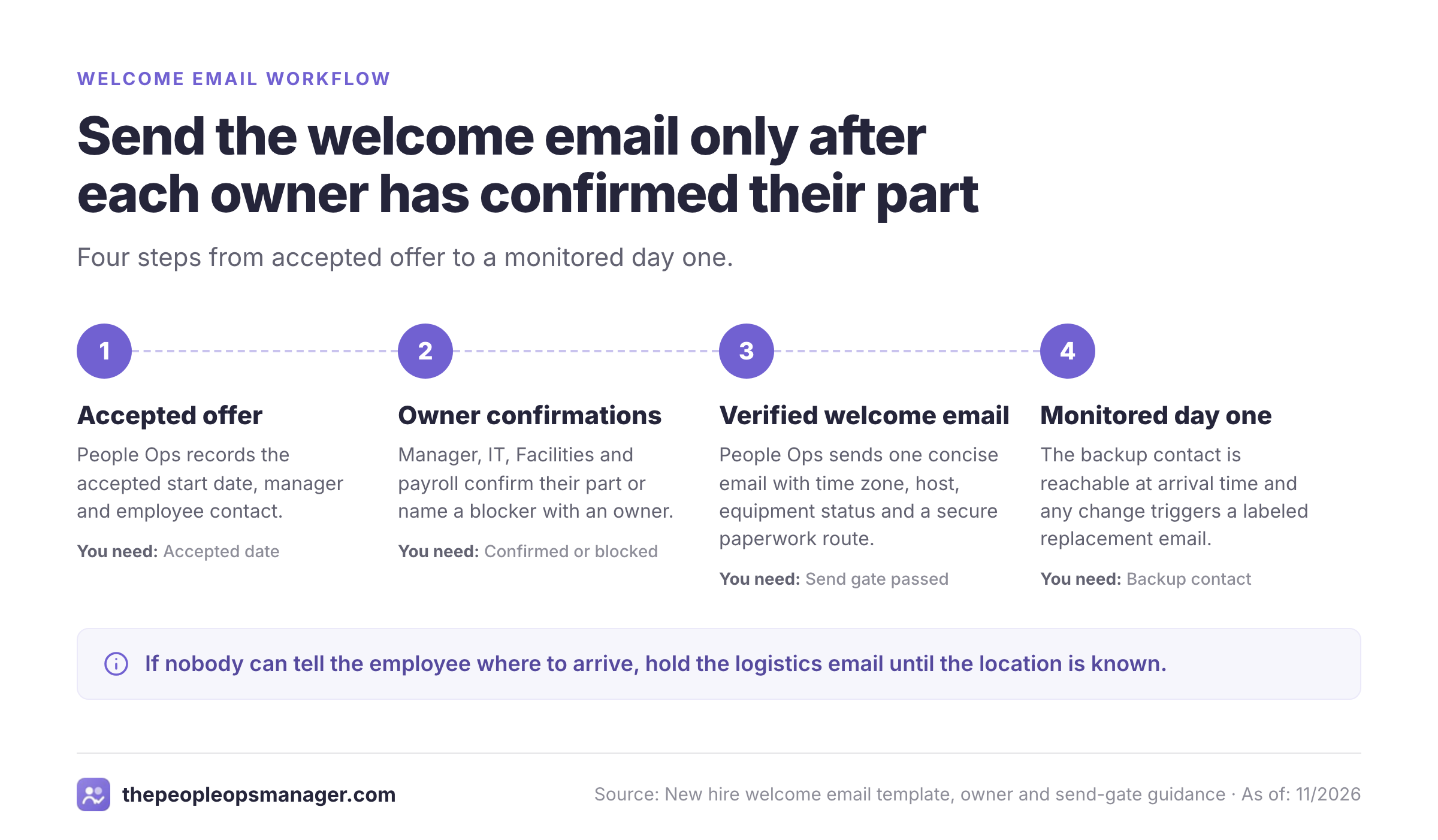
People Ops should own the employee-facing logistics message, but it can't certify tasks owned by other teams. The manager confirms the first conversation, IT confirms equipment and access, Facilities confirms the route into the building and Finance or payroll owns its secure setup path. A buddy can welcome the person, yet shouldn't become the default escalation owner for broken provisioning.
| Owner | Must confirm | Evidence of readiness | Escalation if blocked |
|---|---|---|---|
| People Ops | Start date, recipient, paperwork route and final send | Accepted date and approved email draft | Hiring manager or HR lead |
| Hiring manager | First meeting, team contact and role expectations | Accepted calendar event and named host | Department lead |
| IT | Device assignment, activation route and support contact | Provisioning confirmation or delivery status | IT lead |
| Facilities or site lead | Address, access instructions and check-in host | Entry instructions verified with site | Site manager |
| Finance or payroll | Secure paperwork route and setup owner | Confirmed invitation or scheduled setup | Payroll lead |
| Buddy | Introduction and available time | Accepted introduction invitation | Hiring manager |
A useful status isn't simply "done". Use confirmed, blocked or not yet due, and record who will fix the blocker. If the laptop is delayed, the email can still be sent with a verified alternate plan. If nobody can tell the employee where to arrive, hold the logistics email until the location is known.
Collect the confirmed facts
People Ops checks the accepted start date, manager, location or join link and employee contact. A hiring record is a starting point, not proof that the day-one arrangements still hold.
Get owner confirmations
The manager confirms the first meeting. IT confirms equipment and access status. Facilities or the site lead confirms arrival. Payroll confirms the secure paperwork route. Record blockers with an owner and next update.
Send, monitor and correct
Send one concise email, check that the reply route works and log any changed details. If a change affects the start, issue a clearly labeled replacement message and update the underlying onboarding record.
The difference between an email template and an onboarding workflow is accountability. A template can be copied perfectly while the new employee still waits outside the building. The operating record should make that gap visible before day one.
What should I avoid asking for in a welcome email?
A welcome email shouldn't become an unsecured collection channel for identity documents, Social Security numbers, bank account details or passwords. The Federal Trade Commission's business guidance advises companies to minimize sensitive information and protect what they retain. Use an approved HR or payroll process rather than asking the employee to reply with sensitive attachments.
US employers also need to handle Form I-9 correctly. Under the USCIS Form I-9 instructions, employees complete Section 1 no later than their first day of employment. Employers generally complete Section 2 within three business days after the employee starts, with a first-day exception for employment lasting fewer than three business days. Those are compliance deadlines, not recommended email send times.
The employee chooses which acceptable documents to present for Form I-9. Don't write "bring your passport" or "email your Social Security card" as though those are the only permitted options. Point to the official Lists of Acceptable Documents and your approved verification process instead. The welcome email can say that HR will explain the process, but it shouldn't prescribe the employee's document selection.
For remote hires, coordinate the approved I-9 document examination procedure with the responsible HR team. Don't assume that a video call or an emailed scan automatically satisfies the rules. Where your process uses an authorized representative or an approved alternative procedure, the compliance owner should confirm the exact steps separately.
Which subject lines make a welcome email easy to recognize?
Use a subject line that identifies the company and the action. The employee may be sorting through offer letters, payroll invitations and shipping notifications, so clarity matters more than cleverness. Choose the one that fits the message.
- Welcome to [Company Name], [First Name] | First-day details
- Your first day at [Company Name] is [Date]
- [First Name], here's where to go on Monday
- Remote onboarding details for [Date]
- Meet your manager and team at [Company Name]
- Your first shift: [Date], [Time], [Location]
- A quick welcome from [Manager Name]
- Updated start details for [Date] | Please confirm
Don't put a private address, identity number or access credential in the subject line. A subject should still make sense on a locked phone screen. For a change notice, put "Updated" near the beginning and ask for acknowledgment when the change affects attendance.
How do I personalize the template without making it too long?
Personalize one line about the person and one line about the actual first-day experience. You don't need a paragraph about company values or a long biography. A concrete note such as "You'll meet the support leads after your setup call" helps the employee picture the day, while a vague statement about being part of a family doesn't answer a practical question.
Consider this generic line: "We're thrilled to welcome you and know you'll make an incredible impact." It doesn't identify the role or what will happen next. A more useful version is: "We're glad you're joining the customer support team. Avery will meet you at 9:30 a.m. ET and walk through your first week." The second line is warmer because it shows someone made a plan.
Keep the personal note distinct from operational promises. A manager can write "I'm looking forward to working with you on our customer escalation process," but shouldn't say the employee will own a specific account until that assignment is approved. Likewise, People Ops can say "IT will contact you about setup" once IT has agreed to do so, without claiming that the account is active.
If the employee has asked for an accommodation, keep that conversation private and use the designated channel. Don't reveal it in a team introduction or copy unrelated recipients. The employee should know whom to contact, while the rest of the team should receive only the information needed to welcome them.
What mistakes make new hire welcome emails fail?
Most failures come from an inaccurate operational detail rather than the greeting. Review these common cases before pressing send.
The email names no human contact. A generic HR inbox may be fine for ordinary questions, but the employee needs a named host or monitored phone number when the door is locked or the meeting link fails. Add a primary and backup contact.
The message assumes corporate access already works. An internal calendar invite isn't enough for someone whose account hasn't been activated. Provide an approved external route to the first meeting and a way to report a problem.
The manager hasn't confirmed the schedule. A beautiful first-day agenda becomes frustrating when the manager is traveling. Ask the manager to accept the meeting and name a substitute before the email is sent.
The device status is invented. "Your laptop is ready" shouldn't appear because an IT ticket was opened. Use the actual status: assigned, shipped, delivered, delayed or awaiting confirmation. Give a next update when it's not ready.
The message asks for sensitive information by reply. Don't use a normal email thread as an identity or payroll collection system. Route the employee through the approved secure process and explain how to verify the invitation.
The team introduction overshares. The employee's personal history, photograph or private contact details aren't required to announce a role. Ask permission and keep the introduction about work.
A changed start date lives in two places. Updating only the calendar or only the email leaves HR, IT and the manager with conflicting plans. Change the underlying record and send one clearly labeled correction.
What should I check before I hit send?
Use this final checklist for every new hire welcome email. The checklist is deliberately operational: a friendly tone can't compensate for an incorrect address or an absent host.
- Offer accepted and start date confirmed in the source record
- Recipient name and external email address checked
- Start time includes the employee's time zone
- Arrival address or remote join link tested
- Primary host and backup contact know they're responsible
- Manager's first meeting confirmed
- IT device and account status stated accurately
- Facilities or site entry instructions verified if relevant
- Secure paperwork route checked without requesting sensitive reply attachments
- Any accommodation request routed privately
- Team introduction uses only approved personal details
- Changed details will trigger a replacement email and owner updates
A second pair of eyes is useful for a complex hire. Ask someone who wasn't involved in drafting to read the message as though they were the new employee. They should be able to identify when to start, where to go, who will meet them and what to do if the plan fails. If they can't, simplify the email rather than adding another attachment.
For a fuller operating plan, use the employee onboarding checklist and the onboarding process flowchart. The new hire onboarding template can hold the broader tasks, while this message stays focused on what the employee needs to know.
Frequently asked questions about new hire welcome emails
The right welcome email is the one that gives the employee a dependable next step. These answers cover the decisions People Ops teams most often need to make when adapting a template.
Who should send a new hire welcome email?
People Ops or HR should usually send the logistics email because that team coordinates the start date, paperwork route and cross-functional handoffs. The hiring manager can send a separate personal note. In a small company, one person may fill both roles, but the operational facts still need owner confirmation.
When should I send the new employee welcome email?
Send a brief welcome after the accepted offer, then send verified day-one logistics about three to five days before the start when practical. This is an editorial recommendation, not a legal requirement. A short-notice hire may need the details immediately.
What should a remote new hire welcome email include?
Include the exact start time and time zone, a tested first-meeting link, equipment delivery status, the approved account activation route, the manager's first meeting and a phone number for help if the employee can't log in.
Can I ask a new hire to email their I-9 documents?
Don't use a routine welcome email to collect identity scans. Follow your organization's approved Form I-9 process, provide the official Lists of Acceptable Documents and let the employee choose acceptable documents. HR should confirm the applicable examination procedure.
Should the manager or HR introduce the new employee to the team?
Either can send the team introduction if the role and start date are confirmed. Keep it separate from the employee's logistical welcome, obtain consent for personal details and name a colleague who can help with introductions.
What if the employee's laptop or account isn't ready?
State the actual blocker and give a named support owner, a realistic next update and a workable first-day alternative. Don't claim the device or account is ready just because a ticket exists.