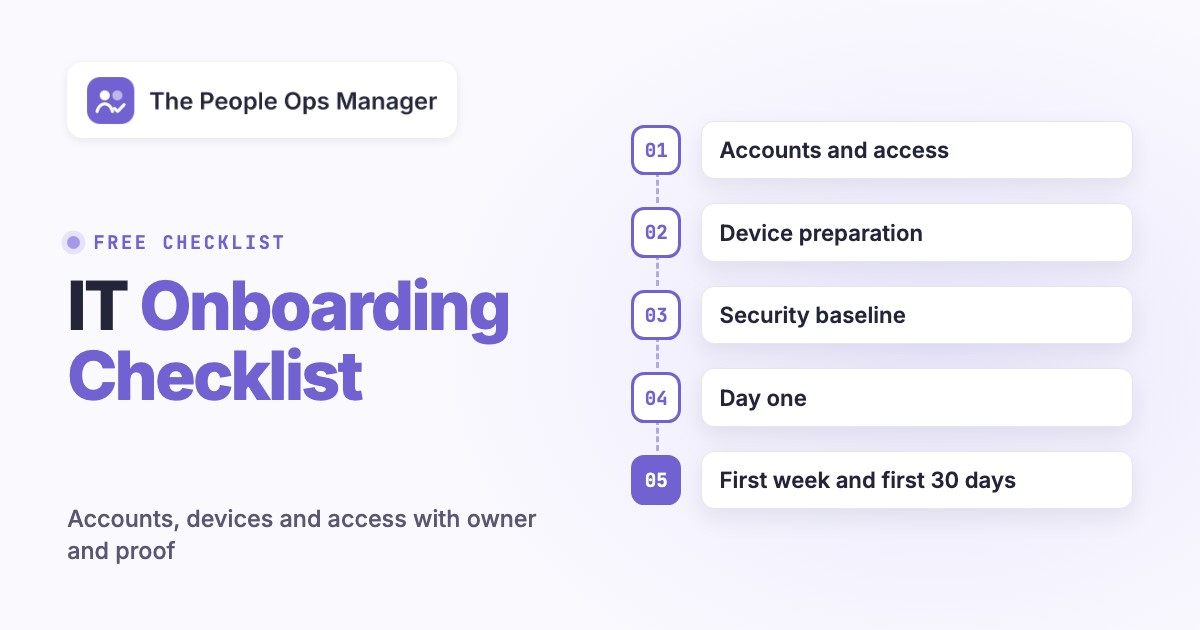
An IT onboarding checklist is the list of tasks IT completes so a new hire can work on day one: accounts created, access granted, a laptop configured and security basics in place. A good one also says who owns each task, when it's due and how you know it's done, because most day-one failures come from a missing hire date, a late device order or an access request nobody approved, not from a missing step on the list.
This page gives you a free checklist you can copy or download as a Word file or a spreadsheet, the data IT needs from HR before the start date, and the account, device and timeline details that cause the most delays. It's written for IT leads, HR and People Ops teams at companies of roughly 20 to 500 people, where one or two people do the setup and the handoff with HR is mostly email.
- Get six facts from HR before anything else: legal name, start date, role, manager, work location and employment type. Every later task depends on them.
- Create the identity account and assign access by role, with a named approver for anything beyond the role's standard set.
- Order and configure the device before the start date, and enroll it in device management so policies apply on first sign-in.
- Don't grant broad access until the new hire has enrolled multi-factor authentication.
- Give every task an owner, a due date and proof. Confirm access to every required system by the end of week one.
What Is an IT Onboarding Checklist?
An IT onboarding checklist is a task list for setting up a new employee's accounts, devices and access before and during their first weeks. It covers what IT does alone (create the account, enroll the laptop) and what depends on someone else (HR confirms the start date, the manager approves access to the finance system).
It's not the same as the general employee onboarding checklist, which also covers paperwork, introductions and training. The IT version is narrower and more technical, but it's the part that decides whether a new hire can open their email at 9 a.m. The day-one onboarding checklist shows where IT's work lands in the first day, and the preboarding checklist covers what happens between offer acceptance and the start date.
An IT checklist works when it has three columns beyond the task itself:
- Owner: one named role per task, so nothing sits with "IT" in general.
- Due: a date relative to the start date, such as five days before or end of week one.
- Proof: what shows the task is finished, such as a ticket number, a screenshot of the enrolled device or the account's last sign-in.
Free IT Onboarding Checklist You Can Copy or Download
You can copy the checklist below into your own ticketing tool or document, or you can download the Word file for a printable version and the spreadsheet for tracking several hires at once. The grey example values show what a finished entry looks like. Replace them with your own tools and names. It's free, and there's no sign-up.
IT onboarding checklist
Six phases from offer accepted to day 30. Replace the grey examples with your own tools, owners and ticket numbers.
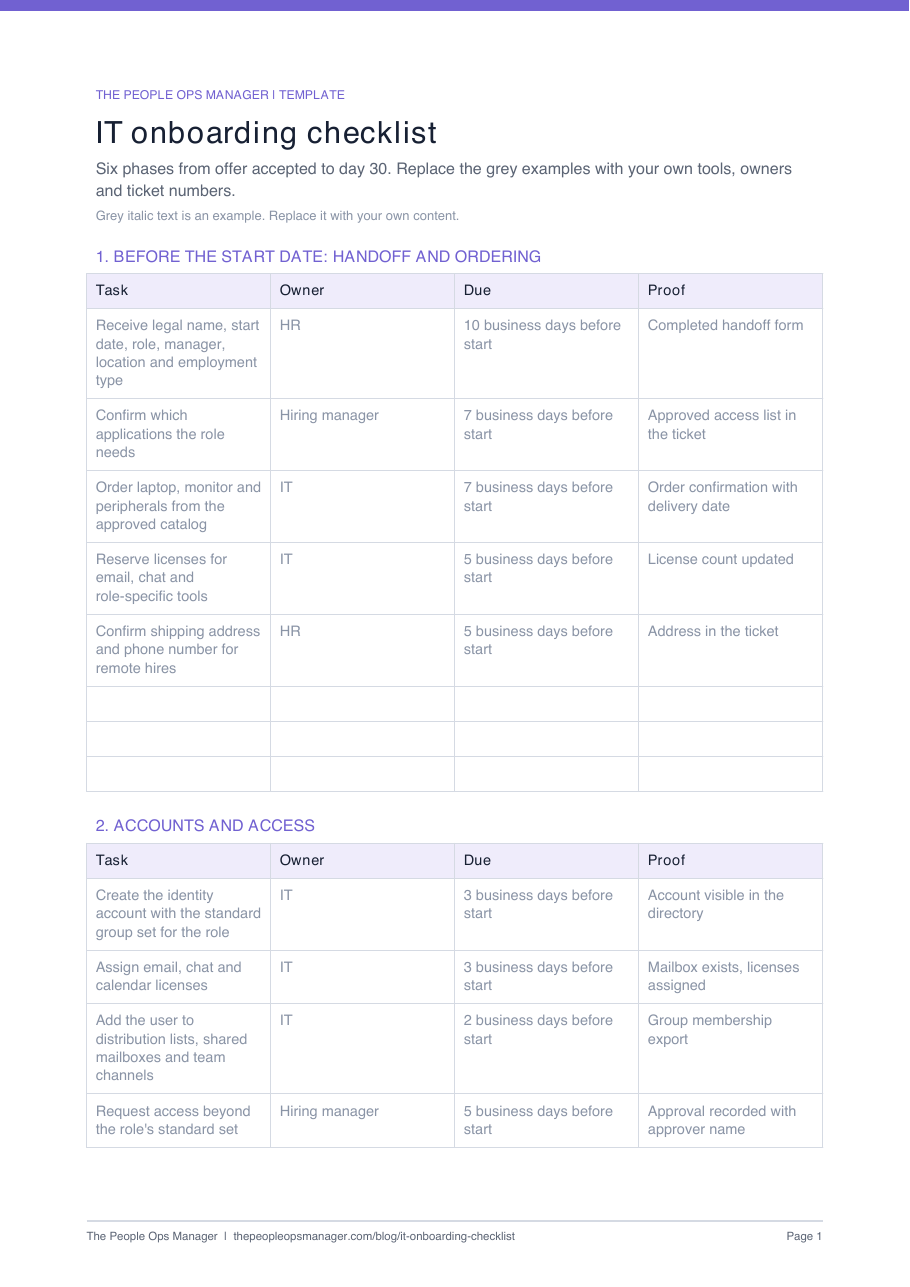
| Task | Owner | Due | Proof |
|---|---|---|---|
| Receive legal name, start date, role, manager, location and employment type | HR | 10 business days before start | Completed handoff form |
| Confirm which applications the role needs | Hiring manager | 7 business days before start | Approved access list in the ticket |
| Order laptop, monitor and peripherals from the approved catalog | IT | 7 business days before start | Order confirmation with delivery date |
| Reserve licenses for email, chat and role-specific tools | IT | 5 business days before start | License count updated |
| Confirm shipping address and phone number for remote hires | HR | 5 business days before start | Address in the ticket |
| Task | Owner | Due | Proof |
|---|---|---|---|
| Create the identity account with the standard group set for the role | IT | 3 business days before start | Account visible in the directory |
| Assign email, chat and calendar licenses | IT | 3 business days before start | Mailbox exists, licenses assigned |
| Add the user to distribution lists, shared mailboxes and team channels | IT | 2 business days before start | Group membership export |
| Request access beyond the role's standard set | Hiring manager | 5 business days before start | Approval recorded with approver name |
| Prepare the first sign-in method for multi-factor setup | IT | 1 business day before start | Sign-in method issued |
| Task | Owner | Due | Proof |
|---|---|---|---|
| Enroll the device in device management | IT | 2 business days before start | Device shows as enrolled and compliant |
| Apply baseline policies: disk encryption, screen lock, endpoint protection, update cadence | IT | 2 business days before start | Policy report for the device |
| Install the standard apps and the role's apps | IT | 2 business days before start | App inventory for the device |
| Record the asset tag and assign the device to the employee | IT | On receipt | Asset record updated |
| Ship or stage the device for pickup | IT | 2 business days before start | Tracking number or pickup note |
- Multi-factor authentication enrolled before broad access is grantedCheck this first on day one
- Password manager installed and first entries createdWalk through it together
- Acceptable use policy acknowledgedStore the acknowledgment with the HR record
- Security awareness training assigned with a due dateWithin the first week is typical
- Admin rights not granted by defaultAny exception needs a named approver and an end date
| Task | Owner | Due | Proof |
|---|---|---|---|
| Hand over the device with written sign-in steps | IT | Day 1, morning | Handover note |
| Verify multi-factor enrollment | IT | Day 1, morning | Enrollment shown in the admin console |
| Confirm email, chat, calendar and VPN work | New hire and IT | Day 1 | New hire confirms in the ticket |
| Show how to reach IT support | IT | Day 1 | Support channel pinned |
| Task | Owner | Due | Proof |
|---|---|---|---|
| Confirm access to every required system | Hiring manager and IT | End of week 1 | Checklist signed off in the ticket |
| Review and remove temporary privileges | IT | End of week 1 | Privilege report |
| Record any exceptions and who approved them | IT | End of week 1 | Exceptions logged |
| Collect feedback on what was missing or late | IT | Day 30 | Notes for the next hire's checklist |
What Does IT Need From HR Before the Start Date?
IT needs six facts from HR before it can start: the employee's legal name, start date, job title, manager, work location and employment type. Without them IT can't create the account, choose the right group set or know where to ship the laptop, so it's worth being strict about this one. Ask for them in one form, at one moment, and keep the deadline firm. Ten business days before the start date gives IT time to order hardware, which is usually the slowest part.
| Handoff field | Why IT needs it | Latest sensible date |
|---|---|---|
| Legal name and preferred name | Account name, email address, display name | 10 business days before start |
| Start date | Sets every deadline and the account activation date | 10 business days before start |
| Job title and department | Chooses the standard group set and licenses | 10 business days before start |
| Manager | Approver for extra access and device questions | 10 business days before start |
| Work location or remote status | Decides whether the laptop ships or is picked up | 10 business days before start |
| Employment type | Employee, contractor and intern accounts get different access | 10 business days before start |
| Special equipment or accessibility needs | Affects the order | 7 business days before start |
Dates change. A start date that moves by a week after the order was placed is common, but that's exactly why the checklist records the date in one place that everyone reads. If the start date slips, IT needs to hear the same day, not at the next sync, because the order and the account activation both move with it. The employee onboarding process page shows how to build that handoff into the wider workflow.
How Do You Set Up Accounts and Access for a New Hire?
Create the identity account first, assign access by role, and enroll multi-factor authentication before granting anything beyond email and chat. Role-based groups keep this fast: a sales hire gets the sales group set, an engineer gets the engineering set, and anything outside the set goes through a recorded approval from the manager or system owner.
Three habits keep access clean:
- Start from the role, not the previous person. Copying a colleague's access also copies their old permissions, and nobody remembers why they were granted. Maintain a standard set per role and add exceptions on purpose.
- Record who approved what. Each extra permission should have an approver and a date, so a later audit or a departing employee's cleanup is simple.
- Give temporary access an end date. If a new hire needs elevated rights to finish setup, note the date they expire and review it at the end of week one.
For the first sign-in, a one-time passcode avoids sending a password by email. Microsoft's Entra documentation describes a Temporary Access Pass as a time-limited passcode that can be single use or multiple use and that lets a user sign in to register other passwordless methods. The default lifetime is 1 hour, and administrators can set it anywhere from 10 minutes to 43,200 minutes (30 days). If a one-time pass is used to register a FIDO2 security key or phone sign-in, the user has to finish the registration within 10 minutes of signing in. In practice that means you schedule the pass for the moment the new hire is on a call with you, not for the night before.
Microsoft also documents lifecycle workflows that automate joiner tasks, and its example is a workflow that emails a manager 7 days before the value in the employeeHireDate attribute. You don't need that tool to copy the idea, but whatever you use, tie reminders to the start date rather than to a calendar entry someone has to remember.
How Do You Prepare a Laptop for a New Hire?
Order the device as soon as HR confirms the hire, enroll it in device management before it ships, and apply the baseline policies so they take effect on first sign-in. Hardware lead times aren't short, and they're by far the most common reason a new hire starts without a laptop, so the order is the first IT task with a hard date.
A baseline for a laptop usually covers disk encryption, a screen lock timeout, endpoint protection, an update cadence and the standard apps. The checklist above lists them as separate rows so each one has proof.
Zero-touch enrollment removes most of the manual imaging work. Microsoft describes Windows Autopilot as a set of technologies for setting up and pre-configuring new devices. The device ships with the OEM's version of Windows, joins Microsoft Entra ID, enrolls in a management service such as Intune and receives its settings and apps, and the only thing the user does is connect to a network and verify their credentials. Autopilot can also reset and repurpose devices, which helps when a returned laptop goes to the next hire. If you run Macs, check your management tool's documentation for the equivalent enrollment path before you rely on it.
Record the asset tag when the device arrives, assign it to the employee and note the shipping or pickup arrangement. A spare laptop in stock saves the day when a delivery is late.
IT Onboarding Timeline From Offer Accepted to Day 30
Use the timeline below as a default and adjust it to your hardware lead times. Each row has an owner and a proof so you can see what's late.
- HRSend the handoff form with the six facts. Proof: completed form in the ticket. 10 business days before start
- Hiring managerApprove the application list for the role. Proof: approval in the ticket. 7 business days before start
- ITOrder the device and reserve licenses. Proof: order confirmation and license count. 7 business days before start
- ITCreate the account, groups and mailbox. Proof: account in the directory. 3 business days before start
- ITEnroll the device, apply baseline policies and install apps. Proof: compliant device report. 2 business days before start
- ITHand over the device and verify multi-factor enrollment. Proof: handover note and enrollment shown in the console. Day 1
- Hiring manager and ITConfirm access to every required system and review temporary privileges. Proof: signed-off checklist. End of week 1
- ITReview what was late or missing and update the checklist. Proof: notes added to the template. Day 30
How Do You Handle IT Onboarding for Remote Employees?
For a remote hire, ship the device to arrive at least two business days before the start date and schedule a short video call on day one to walk through sign-in. Everything else in the checklist stays the same, though three things need extra care, especially the first sign-in.
- Shipping: confirm the address with the new hire, not only from the HR record, and send tracking to both the hire and the manager.
- First sign-in: the new hire can't ask a colleague at the next desk, which makes written steps especially useful. Time any one-time passcode to the call, and keep written steps with screenshots.
- Return path: include a prepaid return label or instructions in the box, so offboarding later is simple. The employee offboarding checklist covers the mirror image of this setup.
Contractors and interns often get shorter lists, not longer ones, and they'll need shorter access windows. Note the end date of the engagement in the ticket when you create the account.
Which IT Onboarding Mistakes Cause the Most Delays?
Most delays trace back to a handful of causes, but almost none of them are technical:
- The start date wasn't shared or changed late. The device is ordered for the wrong week or the account activates too early.
- Access requests have no approver. IT waits for a manager who doesn't know a request is open.
- The hardware order started too late. Lead times are measured in days, not hours.
- Access was copied from a colleague. The new hire inherits permissions they shouldn't have.
- MFA enrollment was skipped on day one. Broad access was granted first and the second factor never happened.
- Nobody checked at the end of week one. Missing access surfaces weeks later as a support ticket.
Most of these are coordination problems between HR, the manager and IT, which is where a spreadsheet starts to strain. If you handle several starts a month, a tool that shows per hire what's blocked and who owns it saves the chasing. The People Ops Manager does this for onboarding tasks across HR, IT and managers, and it's one option among several for the coordination layer, not a replacement for your identity or device management tools.
What should an IT onboarding checklist include?
It should include the HR handoff data (name, start date, role, manager, location, employment type), account and access setup, device ordering and configuration, security basics such as multi-factor authentication and a password manager, a day-one handover, and a check at the end of the first week. Each task needs an owner, a due date and proof, of course.
When should IT start onboarding a new hire?
As soon as HR confirms the hire and start date. About ten business days before the start date is a practical target, because hardware orders and approvals take the longest. Shorter notice works if you keep spare devices and use standard role-based access, though that's a bigger bet.
Who is responsible for IT onboarding, HR or IT?
Both, with different tasks. HR supplies the facts and the start date. The hiring manager approves access beyond the role's standard set. IT creates the accounts, prepares the device and verifies access. Naming one owner clearly per task keeps tasks from falling between teams.
How do you give a new hire a first sign-in without emailing a password?
Use a one-time or time-limited sign-in method. In Microsoft Entra, a Temporary Access Pass is a time-limited passcode with a default lifetime of 1 hour that lets the user register passwordless methods. Other identity providers offer similar enrollment links. Time it to a call with the new hire.
Should new hires get admin rights?
Not by default. Give the standard role access and require a named approver and an end date for any elevated rights. Review temporary privileges at the end of the first week.
How is IT onboarding different for remote employees?
The device is shipped, so the order needs more lead time, and the first sign-in happens on a call instead of at a desk. Include written sign-in steps and a return label in the box.